Quick start
an APK on your phone.
Build the example app, install it on a phone or emulator and look around. No accounts, no network and no keys are needed for this step.
01Quick Start checklist
- Android Studio is installed and you opened it once, so the Android SDK (platform 36) is downloaded (Requirements)
app/local.propertiescontains yoursdk.dirline (Android Studio writes it when you open theappfolder)- The build command below ends with
BUILD SUCCESSFUL - The file
app/app/build/outputs/apk/debug/app-debug.apkexists - The app opens on your phone and shows a yellow EXAMPLE DATA badge on every screen
021. Build the example APK
Use PowerShell. Replace ./gradlew with .\gradlew.bat. Set Java with $env:JAVA_HOME = "C:\Program Files\Android\Android Studio\jbr". Android Studio's own Terminal tab sets Java for you.
export JAVA_HOME="/Applications/Android Studio.app/Contents/jbr/Contents/Home"   # macOS. Linux: the jbr folder inside your Android Studio folder
cd source/app          # from the folder where you unzipped the ZIP
./gradlew :app:assembleDebug -PexampleMode=true
The first run downloads Gradle 9.6 and the libraries, so it takes a few minutes. Later runs take seconds. The result is app/app/build/outputs/apk/debug/app-debug.apk (the first app is the Gradle project, the second the module).
The log ends with BUILD SUCCESSFUL and the APK file exists. If it fails, see Common errors.
032. Install it
- On a phoneEnable Developer options and USB debugging, connect the phone, then run
adb install -r app/app/build/outputs/apk/debug/app-debug.apkfrom the folder aboveapp/(adbis in theplatform-toolsfolder of your Android SDK). - Or on an emulatorCreate a virtual device in Android Studio (Device Manager), start it and drag the APK onto its window.
- Or run from Android StudioOpen the
appfolder, pick theapprun configuration and press Run. Add-PexampleMode=trueunder Settings, Build, Gradle, or build with the command above.
Run adb from PowerShell with the full path, for example & "$env:LOCALAPPDATA\Android\Sdk\platform-tools\adb.exe" install -r app\app\build\outputs\apk\debug\app-debug.apk.
043. What you see
The example build uses a fictional token, NOVA on the Base Sepolia test network, an in-memory wallet whose recovery phrase is public, and a fake node inside the app. It makes no network calls. Every screen carries an EXAMPLE DATA badge.
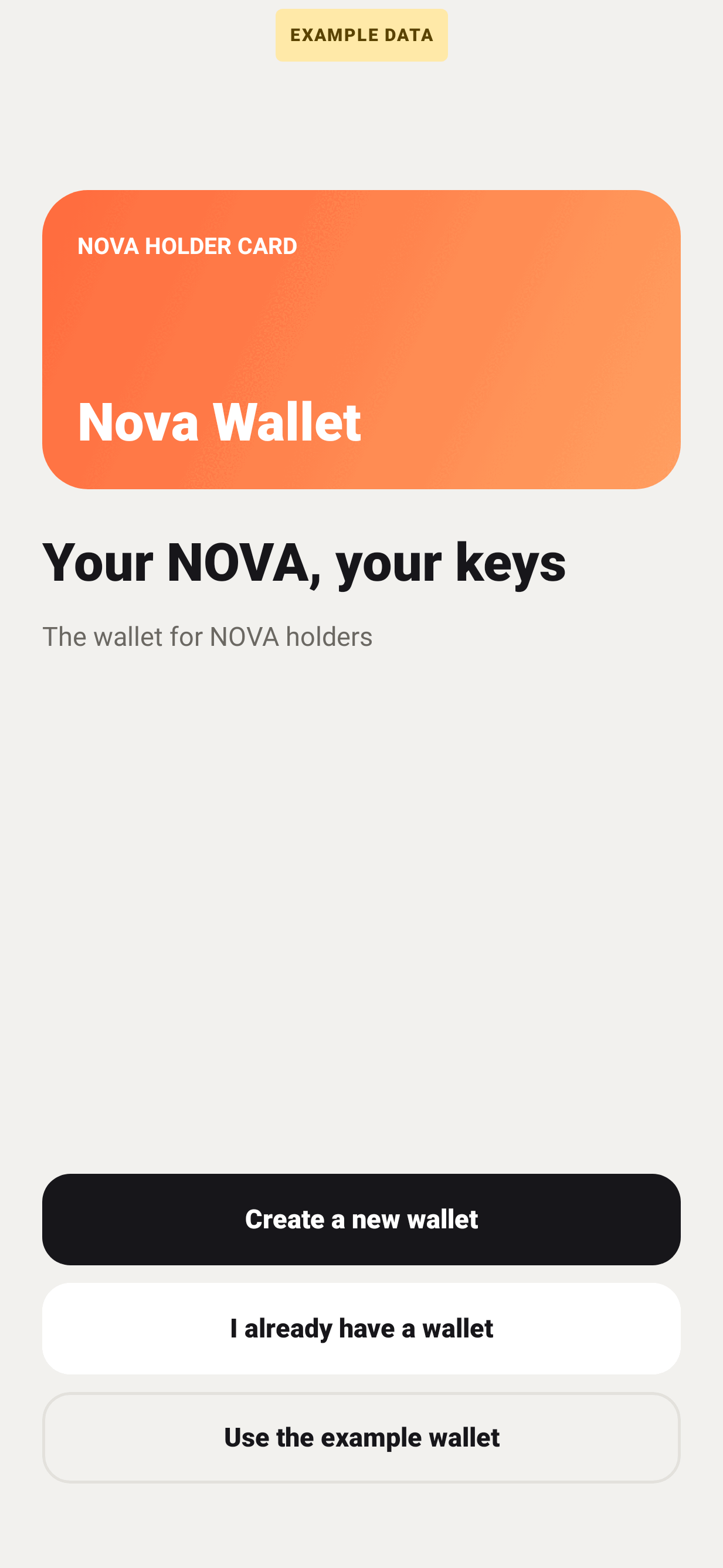
You can choose "Use the example wallet", land on the home screen with the NOVA holder card, open the signing screen from Send, and see an unlimited approval refused with "Blocked for your safety". Try Project, Dapps and Settings, Approvals.
Never use the example build for real money. It exists for screenshots and demos.
054. Try the console (optional, two minutes)
In PowerShell set the variables first: $env:ADMIN_DATA="sample"; $env:ADMIN_SECRET_KEY = node -e "console.log(require('crypto').randomBytes(32).toString('hex'))", then run npm start.
cd admin
npm ci
npm run build
ADMIN_DATA=sample ADMIN_SECRET_KEY=$(openssl rand -hex 32) npm start   # http://localhost:8790/admin
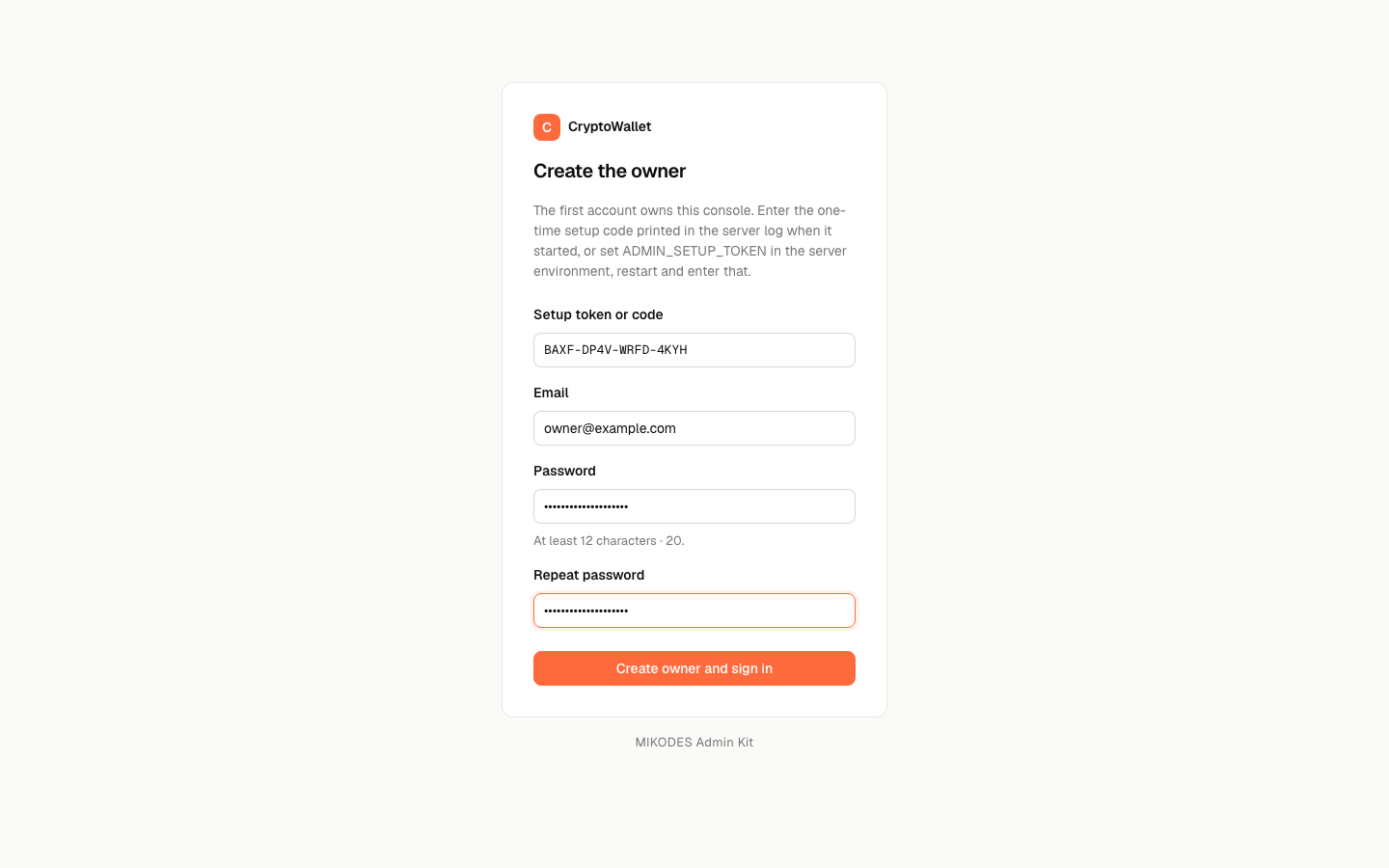
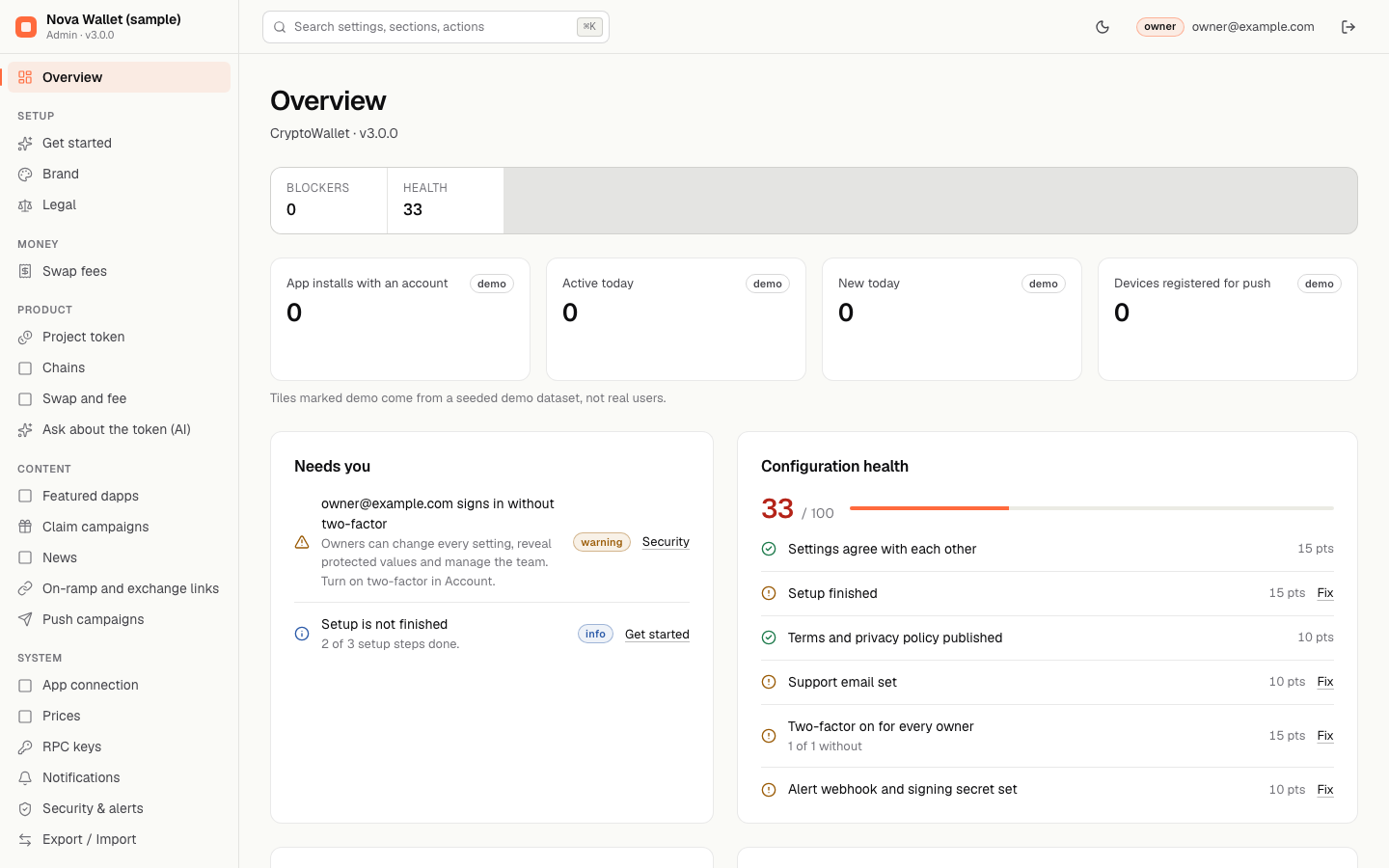
The log prints a one-time setup code. Open the address, choose "Create the owner", enter the code, an e-mail and a password of 12 or more characters. With ADMIN_DATA=sample the console shows built-in sample data and needs no Firebase. Nothing you do there reaches an app.